
Introduction
Income tax is one of the most important financial obligations for individuals, salaried employees, freelancers, professionals, and business owners. Every financial year, taxpayers need to estimate their taxable income, calculate deductions, determine tax liability, and plan their finances accordingly.
While many online tax calculators are available, Microsoft Excel remains one of the most popular tools for tax planning and calculations. Excel provides flexibility, transparency, customization, and the ability to analyze multiple tax scenarios in one spreadsheet.
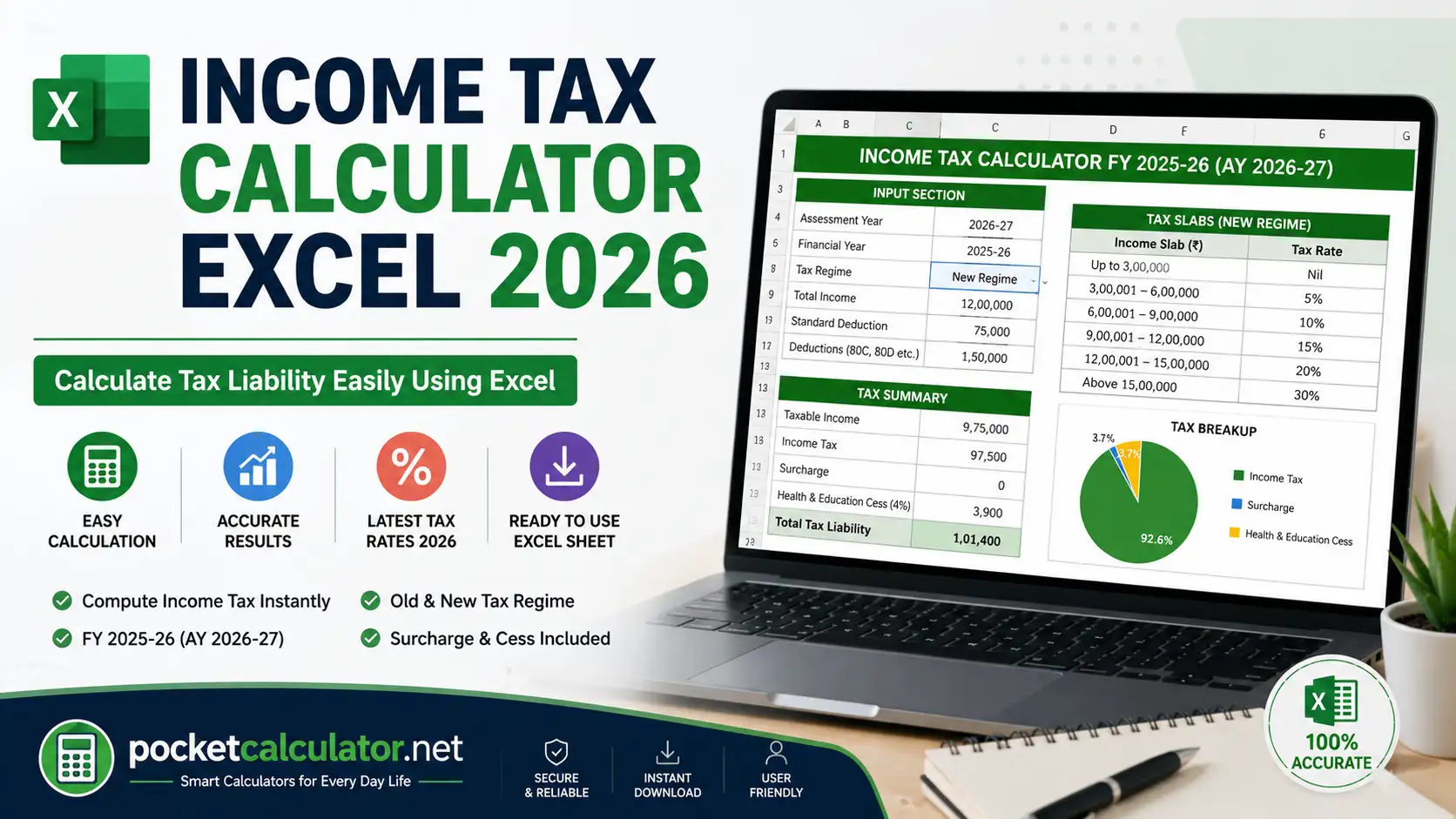
An Income Tax Calculator Excel is a spreadsheet-based tool that helps taxpayers estimate income tax liability by entering income details, deductions, exemptions, and applicable tax rates. It automatically calculates taxable income and provides an estimate of the tax payable.
Whether you’re a salaried employee, self-employed professional, freelancer, consultant, or small business owner, an Income Tax Calculator Excel sheet can simplify tax planning and help you make informed financial decisions.
In this guide, we’ll explain how an Income Tax Calculator Excel works, its benefits, formulas, features, examples, and frequently asked questions.
What is an Income Tax Calculator Excel?
An Income Tax Calculator Excel is a spreadsheet designed to calculate income tax based on user-entered financial information.
The calculator typically includes fields for:
- Annual income
- Salary details
- Business income
- Other income sources
- Tax deductions
- Tax exemptions
- Investments
- Tax regime selection
Based on the information entered, the spreadsheet automatically estimates:
- Gross income
- Taxable income
- Tax liability
- Cess and surcharge (if applicable)
- Net tax payable
Why Use an Income Tax Calculator in Excel?
Many taxpayers prefer Excel because it offers flexibility and complete control over calculations.
Benefits of Excel-Based Tax Calculators
Easy Customization
Users can modify formulas according to their requirements.
Offline Access
Works without internet access.
Better Financial Planning
Allows taxpayers to test multiple tax-saving scenarios.
Transparency
All calculations are visible and easy to verify.
Record Keeping
Tax calculations can be stored for future reference.
Also Read : Senior Citizen Saving Scheme Calculator 2026– Calculate SCSS Returns, Interest & Maturity Amount Easily
How Does an Income Tax Calculator Excel Work?
The spreadsheet follows a structured calculation process.
Step 1
Enter annual income details.
Step 2
Add eligible deductions.
Step 3
Select the applicable tax regime.
Step 4
Calculate taxable income.
Step 5
Apply tax slabs.
Step 6
Add cess and surcharge where applicable.
Step 7
Generate final tax liability.
The calculator performs these calculations automatically using Excel formulas.
Information Required in an Income Tax Calculator Excel
Gross Salary
Includes:
- Basic Salary
- Dearness Allowance
- Bonuses
- Incentives
- Other Allowances
Income from Other Sources
Examples:
- Interest income
- Rental income
- Freelance income
- Business profits
- Dividend income
Deductions
Tax deductions may include eligible investments and expenses according to prevailing tax laws.
Examples:
- Retirement savings contributions
- Insurance premiums
- Educational loan interest
- Housing loan interest
Tax Regime Selection
Taxpayers may need to compare available tax regimes and choose the most suitable option.
Components of an Income Tax Calculator Excel Sheet
A typical Excel tax calculator contains several sections.
Personal Information
Includes:
- Name
- Age
- Financial Year
- Assessment Year
Income Details
Captures:
- Salary
- Business Income
- Capital Gains
- Other Sources
Deduction Section
Allows entry of eligible deductions.
Tax Calculation Area
Automatically computes tax liability.
Summary Dashboard
Displays:
- Taxable Income
- Tax Payable
- Effective Tax Rate
Common Excel Formulas Used in Tax Calculators
Excel automates calculations using formulas.
SUM Formula
Used to total income and deductions.
Example:
=SUM(B2:B10)
IF Formula
Used to apply tax slabs.
Example:
=IF(A1>500000,”Applicable”,”Not Applicable”)
VLOOKUP Formula
Used for slab-based tax calculations.
ROUND Formula
Rounds tax values to desired decimal places.
Example:
=ROUND(A1,0)
Example of Income Tax Calculation in Excel
Suppose a taxpayer has:
- Salary Income = ₹8,00,000
- Other Income = ₹50,000
Gross Income
₹8,50,000
Deductions
₹1,50,000
Taxable Income
₹8,50,000 − ₹1,50,000
= ₹7,00,000
The Excel calculator then applies the applicable tax slab and computes tax liability automatically.
Benefits of Using an Income Tax Calculator Excel
Faster Calculations
Reduces manual work significantly.
Error Reduction
Minimizes mathematical mistakes.
Scenario Analysis
Compare different tax-saving options.
Easy Tax Planning
Helps identify deduction opportunities.
Better Financial Management
Supports budgeting and investment planning.
Features of a Good Income Tax Calculator Excel Sheet
A high-quality Excel calculator should include:
Automated Calculations
No manual formulas required.
Tax Regime Comparison
Compare available tax structures.
Mobile Compatibility
Accessible through Excel mobile apps.
Printable Reports
Generate summaries for records.
User-Friendly Layout
Simple navigation and input fields.
Income Tax Planning Using Excel
Excel is not only useful for tax calculation but also for tax planning.
Taxpayers can:
- Estimate future tax liability
- Compare deductions
- Evaluate investment decisions
- Analyze tax-saving opportunities
This helps improve overall financial planning.
Advantages of Excel Over Manual Calculation
| Feature | Excel Calculator | Manual Calculation |
|---|---|---|
| Speed | Fast | Slow |
| Accuracy | High | Moderate |
| Automation | Yes | No |
| Scenario Testing | Easy | Difficult |
| Record Keeping | Yes | Limited |
Who Should Use an Income Tax Calculator Excel?
Salaried Employees
For annual tax planning.
Freelancers
To estimate tax obligations.
Consultants
To manage multiple income sources.
Small Business Owners
To calculate taxable income.
Financial Advisors
To assist clients with tax planning.
Common Mistakes Taxpayers Make
Ignoring Deductions
Many taxpayers miss eligible deductions.
Using Incorrect Income Figures
Always verify income data before calculations.
Not Updating Tax Rules
Tax regulations can change over time.
Calculation Errors
Manual calculations often lead to mistakes.
Excel helps reduce such errors.
Tips for Using an Income Tax Calculator Excel
Keep Data Updated
Enter accurate income and deduction information.
Verify Tax Slabs
Ensure the spreadsheet uses current tax rates.
Maintain Records
Save copies for future reference.
Compare Tax Scenarios
Evaluate different tax-saving strategies.
Double-Check Results
Review calculations before filing returns.
Limitations of Excel Tax Calculators
Although useful, Excel calculators have limitations.
Tax Laws Change
Spreadsheets require regular updates.
Complex Tax Situations
Advanced cases may require professional assistance.
User Input Errors
Incorrect entries can affect results.
Not a Substitute for Professional Advice
Professional guidance may still be necessary in certain situations.
Why Tax Planning is Important
Effective tax planning helps:
- Reduce tax burden legally
- Improve savings
- Increase investment efficiency
- Achieve financial goals
- Avoid last-minute tax-saving decisions
Using an Income Tax Calculator Excel can simplify this process significantly.
Frequently Asked Questions (FAQs)
What is an Income Tax Calculator Excel?
It is a spreadsheet that calculates tax liability based on income and deductions.
Is an Excel tax calculator free?
Many Excel-based tax calculators are available free of charge.
Can I use it offline?
Yes. Excel calculators work without an internet connection.
Is Excel suitable for tax planning?
Yes. It allows detailed analysis and scenario comparison.
Can I calculate tax for multiple years?
Yes. Historical and future tax calculations can be stored in separate worksheets.
Do Excel tax calculators guarantee accuracy?
Accuracy depends on correct inputs and updated tax formulas.
Should I still consult a tax professional?
For complex tax situations, professional guidance may be beneficial.